


 Request Account
 Register Your Project
 Request Quotation
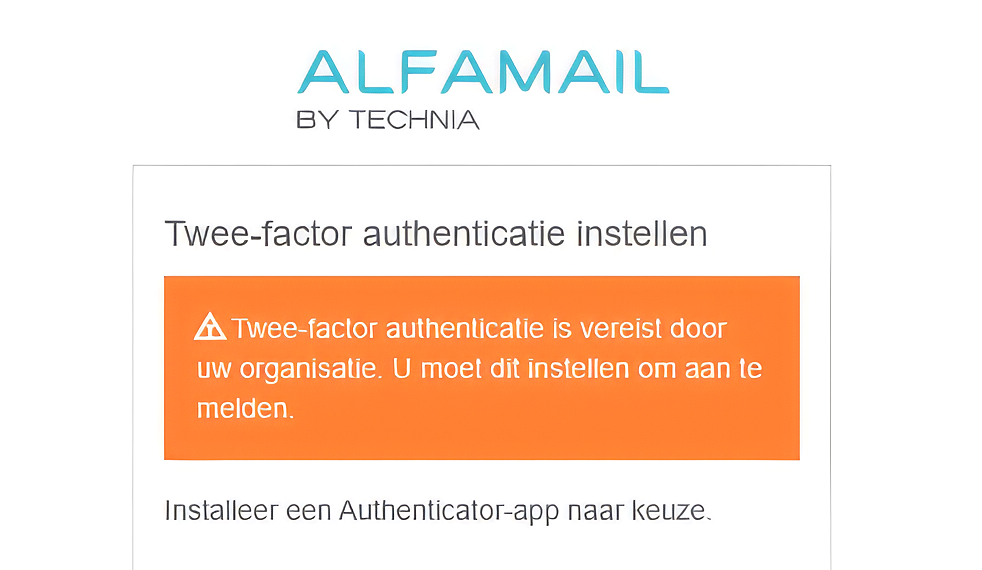
You can now switch on multi-factor authentication in Alfamail. Alongside your password, Alfamail asks for a code from an authenticator app when you log in.
Why it is there
In the frameworks that apply in this sector, the BIO and ISO 27001, multi-factor authentication is a baseline control, not an extra. It comes up in almost every tender and security questionnaire. With MFA in Alfamail, that answer is short.
How it works
You register Alfamail once in an authenticator app: Microsoft Authenticator, Google Authenticator, or whichever app your organisation mandates. At login you then enter the six-digit code the app is showing. No extra hardware, no separate licence, no SMS. Beyond that, nothing changes in your day-to-day work.
Switching it on
- Open the security settings of your account.
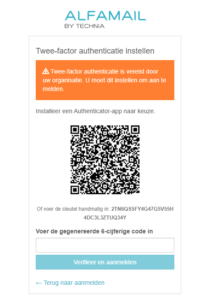
- Select Enable multi-factor authentication. Alfamail displays a QR code.
- Scan the code with your authenticator app.
- Enter the six-digit code to confirm.
- Store the recovery codes somewhere safe, away from your phone.
For administrators
Decide which authenticator app your organisation permits, and agree who resets MFA when a phone is lost; that is the most common support request after rollout. Align it with supply chain partners in the same project, since they log in too. Note that MFA is not a substitute for working agreements: shared accounts and access that is never revoked remain a concern.
MFA is now available in Alfamail, under your account security settings. Questions about rollout in your organisation? Contact your Alfamail contact.